Customize the Branded Tracking Template
Copy and customize a branded tracking web template for your store.
Branded tracking gives customers a store-specific tracking page when they select a tracking number in a shipment notification or shipment exception email. The page shows order and shipment progress while carrying the branding of the store that sent the shipment.
This article explains how to copy a built-in branded tracking template and customize it for a specific store. Keeping the original template unchanged gives you a dependable fallback and lets you copy it again for every store that needs its own design.
Before You Begin
- Branded tracking must be enabled for your store(s).
- This article uses the default Branded Tracking Page template. However, the Branded Tracking Page (wide) template is also available when its layout better fits your store. Learn more about the default Postsale templates.
Copy and Customize a Branded Tracking Template
Real-World Example
We need a custom branded tracking page for our store, using our logo, colors, and wording. We want to keep the original built-in template unchanged so we can return to it or make additional copies for other stores.
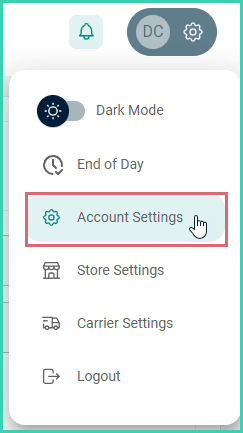
Go to Settings.

Select Account Settings.
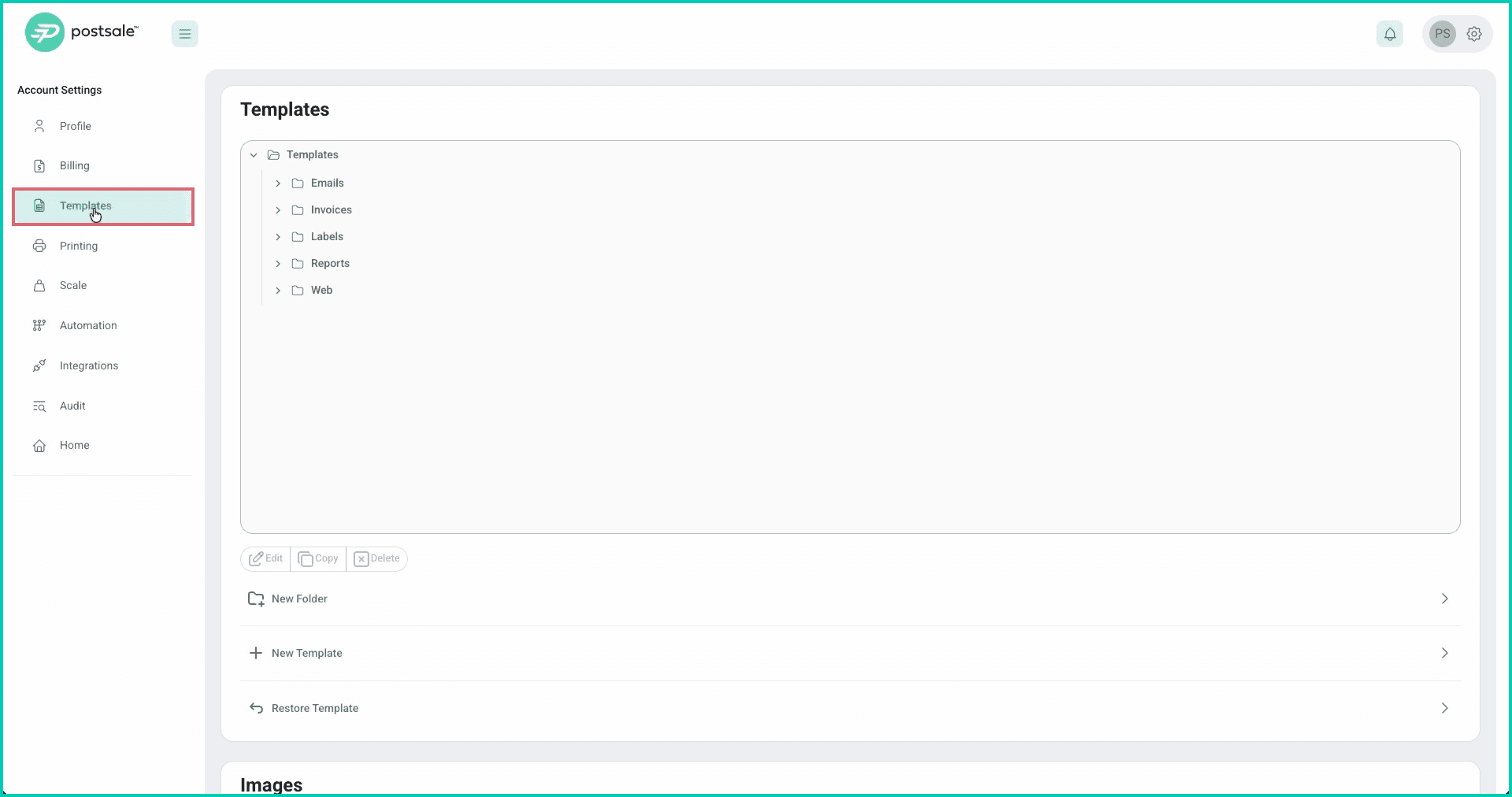
Select Templates.
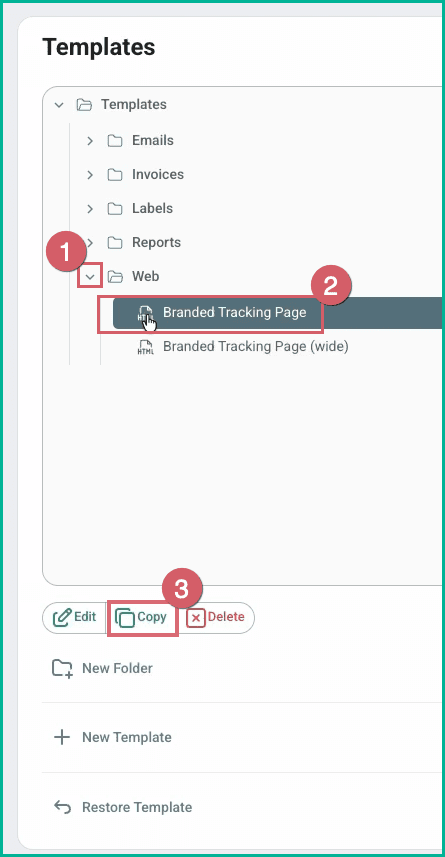
Expand Web. Select the Branded Tracking template you wish to customize. Then, click Copy. For this example, we will copy the Branded Tracking Page template.
Copying the original template instead of editing it lets you keep the original untouched as a fallback and create multiple copies for different stores that need differently branded tracking pages.
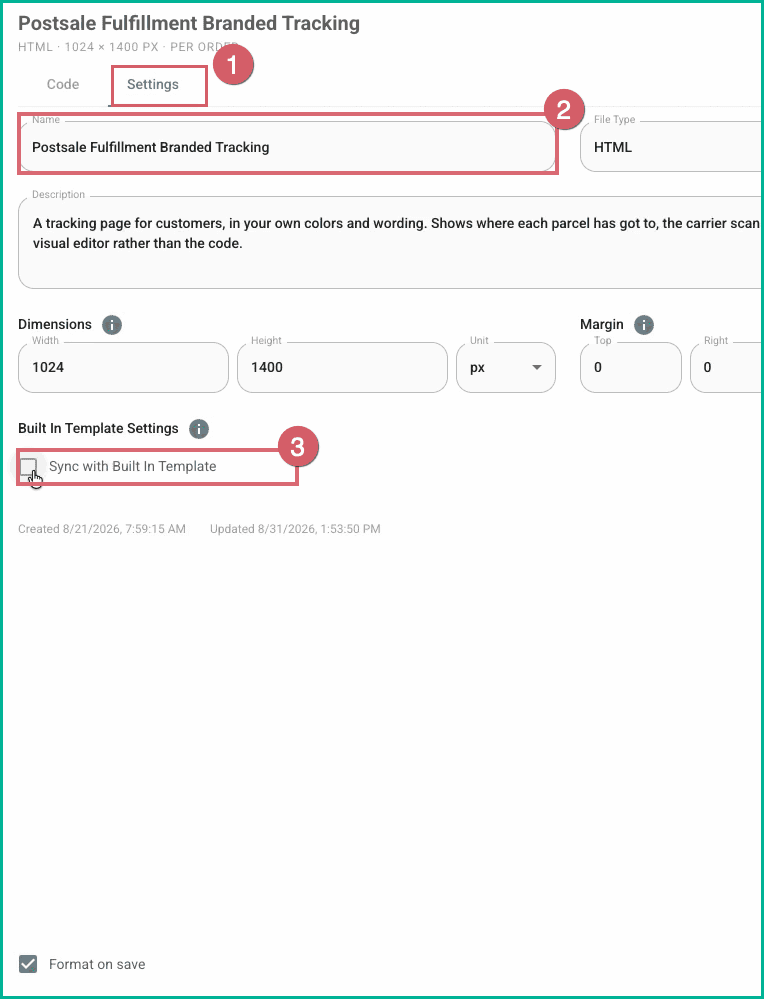
Select the Settings tab. Enter a name that clearly identifies the template (for example, we will use Postsale Fulfillment Branded Tracking). Then, clear Sync with Built-In Template.
Clearing this setting is important: it prevents the built-in template settings from overwriting the changes you make to your copied template.
Select the Code tab. In this example, we will use the Visual Editor and the live preview to review each change as it is made. Expand the options and update them so the template matches your store's branding.
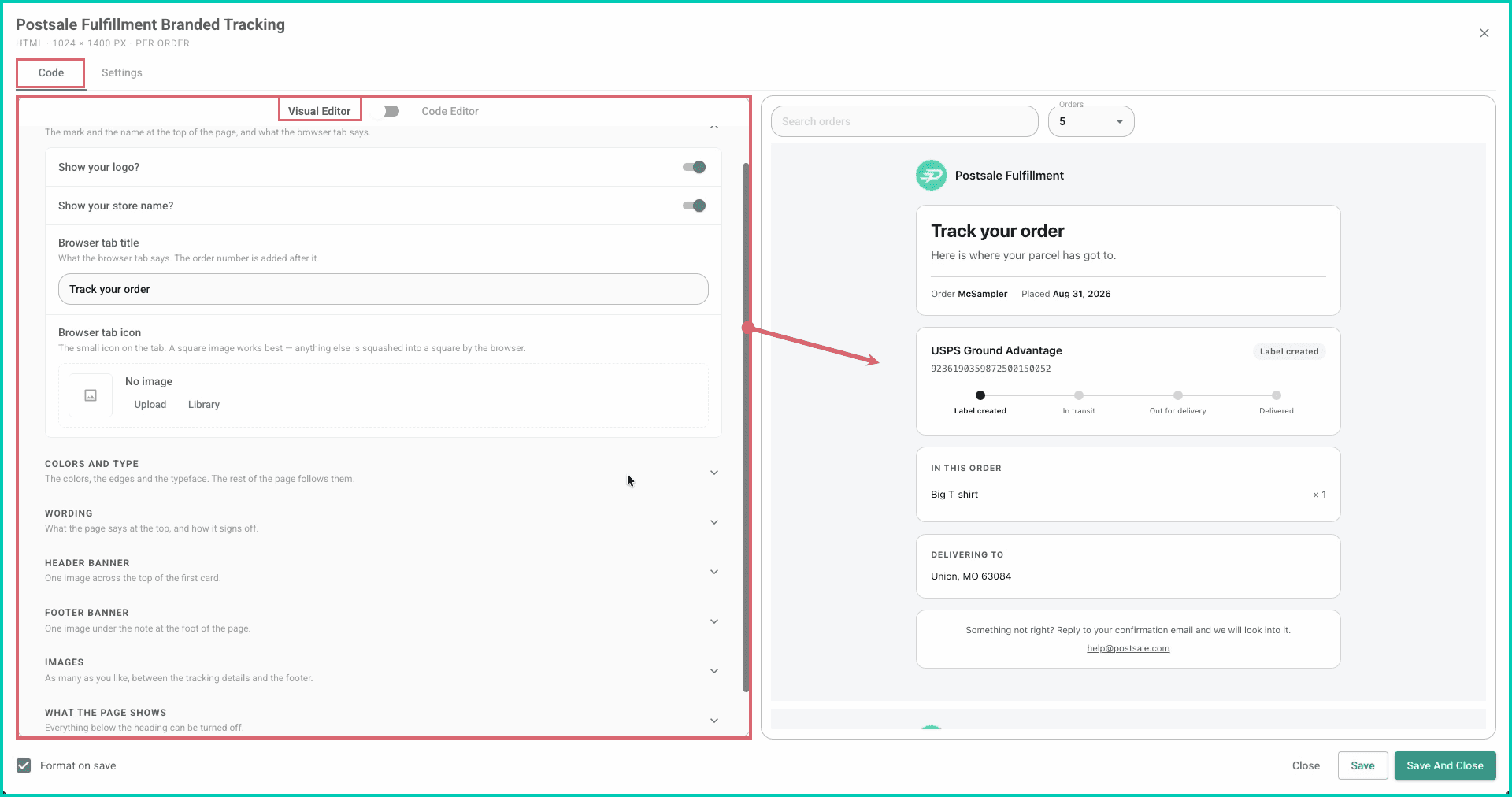
Select Save And Close after you finish your edits.
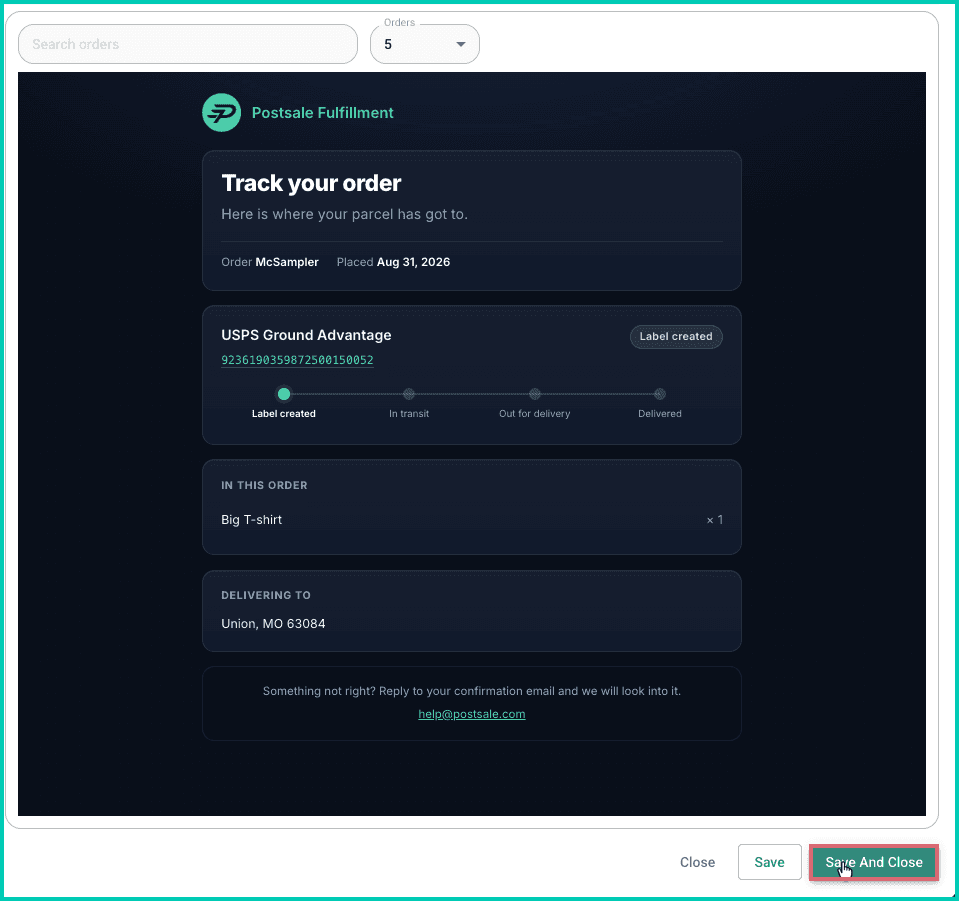
Your new branded tracking page template is ready for use. You can now select this template for the appropriate store when you enable branded tracking.
Still have a question? Ask a person.
Write to support@postsale.com or send us a message. We reply the same business day, Monday to Friday, 8 AM to 5 PM Central.