Print & Save Your Templates
Manually print or save invoices, packing slips, labels, and other templates
Let's look at how to print and save templates. This is useful when you need to reprint a packing slip, invoice, label, or other template, or when you wish to save a template to your computer or mobile device.
Templates are used to print or save
- Packing Slips
- Invoices
- Created shipping labels
- Custom templates (available on the Expand, Thrive, and Soar plans)
Before We Begin
This article assumes that you have imported at least one order into Postsale, have connected at least one shipping carrier account, and have created at least one shipping label.
Print a Template
REAL-WORLD EXAMPLE
There was a misprint when creating shipping labels. We print an invoice along with the shipping label and the invoice got mangled in the printer. We need to reprint the invoice.
When printing in Postsale, you will first select the order(s) you wish to print. This tells Postsale which orders to print for. For example, you could select 3 orders in the orders grid. When you print the template, Postsale will print 3 individual copies, one for each selected order.
Search for and select the orders in the Orders Grid.

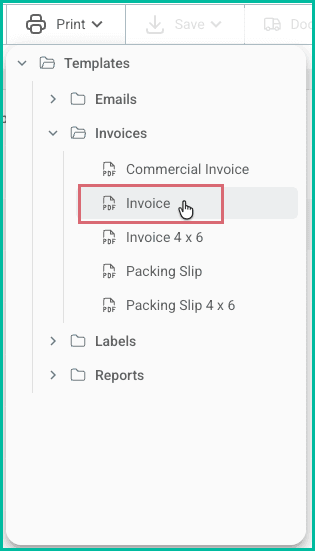
Select Print from the Order Actions Menu.

Select the template you wish to print. In this example, the Invoice template is selected so that an invoice prints for the selected order.
Your web browser's print dialog window will open.
Use the print dialog to select the correct printer, configure additional printing options, and to print the template. Your web browser's print dialog may differ from the image.
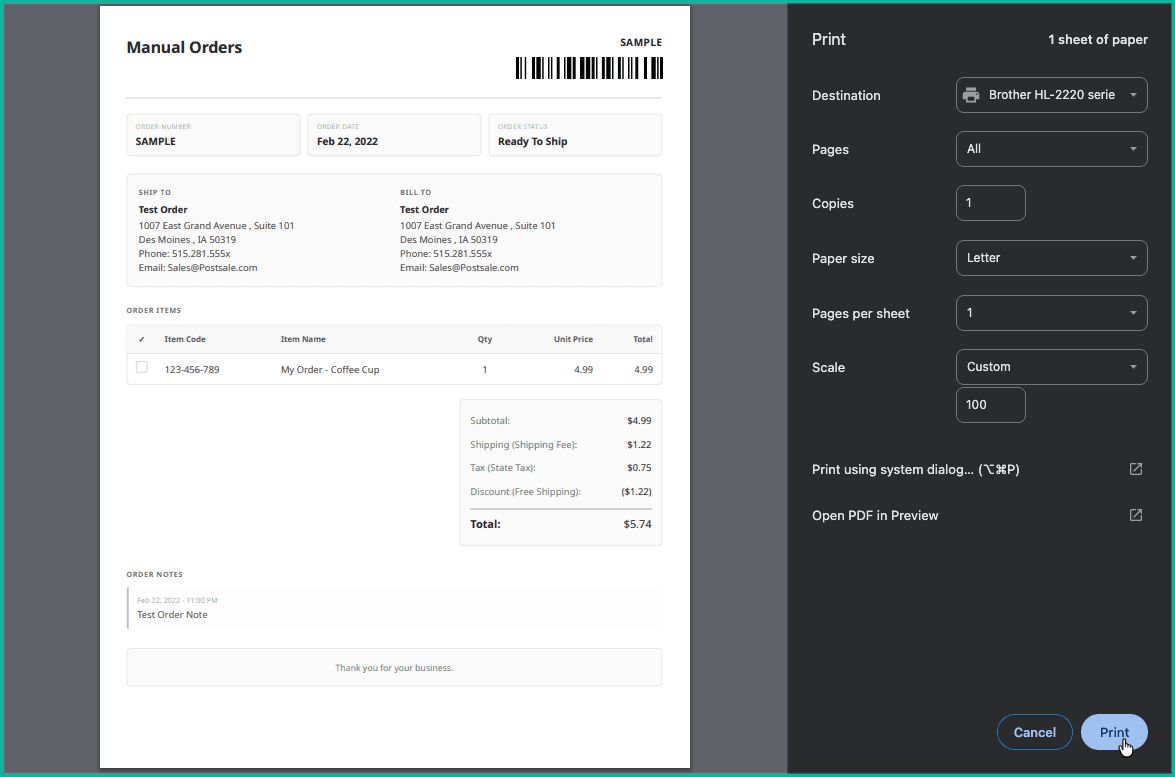
The invoice will print to the printer you selected.
Save a Template
Postsale lets you save a template as a PDF file. For example, you could save an invoice as a PDF and attach it to an email.
REAL-WORLD EXAMPLE
We have created a one-off return label and need to email the label to our customer. We would like to save the label to a PDF file so that it is easily attached to an email.
As with printing a template, you will first select the order(s). This tells Postsale what order information to include in the saved template.
Search for and select the order in the Orders Grid.
Select Save from the Order Actions Menu.

Select the template you wish to save. In this example, we selected the Label 4 x 6 (tall) template to save the shipping label to a PDF file.
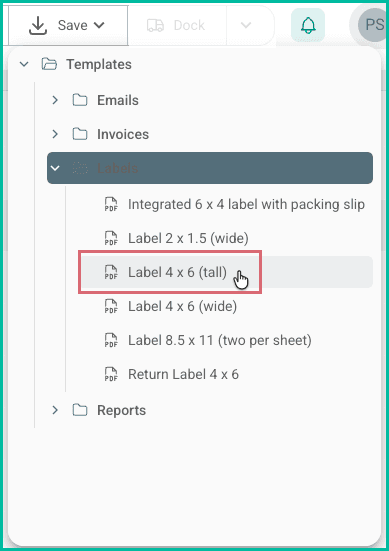
The PDF will be generated and downloaded to your computer or mobile device.
On this page
Related