Add a Squarespace Store
Connect Squarespace to Postsale | Import Orders | Manage Post-purchase Tasks
Handle your post-purchase tasks for Squarespace, such as shipping, customer communication, and order management, with Postsale’s direct Squarespace integration.
REAL-WORLD EXAMPLE
We have a Squarespace storefront and would like to connect Postsale so that we can import our orders and manage our shipping and post-purchase tasks. We would like to import orders that have already been placed and have any newly placed orders automatically import into Postsale.
You can do that! In addition, when you create a shipping label in Postsale, the shipment information is sent back to Squarespace, and the order status is automatically updated.
This article will walk you through connecting your Squarespace store to Postsale.
Before We Begin
- Connecting Squarespace to Postsale requires you to log in to your Squarespace store. Make sure you have your login credentials ready.
- You must be logged into Postsale as the account owner. Only Postsale account owners can add new stores to Postsale.
Connect Squarespace to Postsale
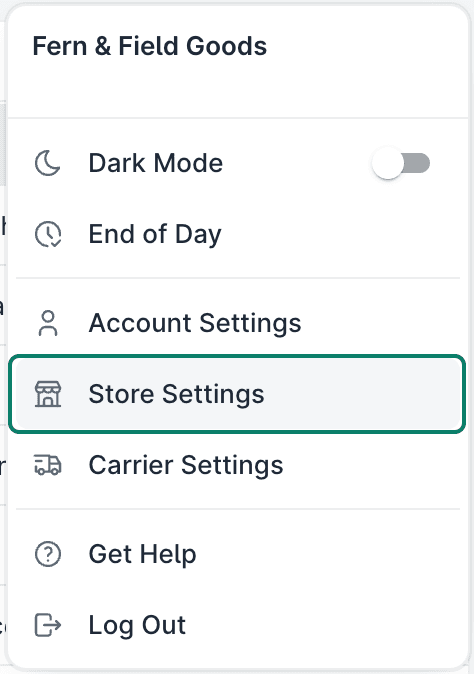
Go to Settings.

Select Store Settings.
Select Squarespace.
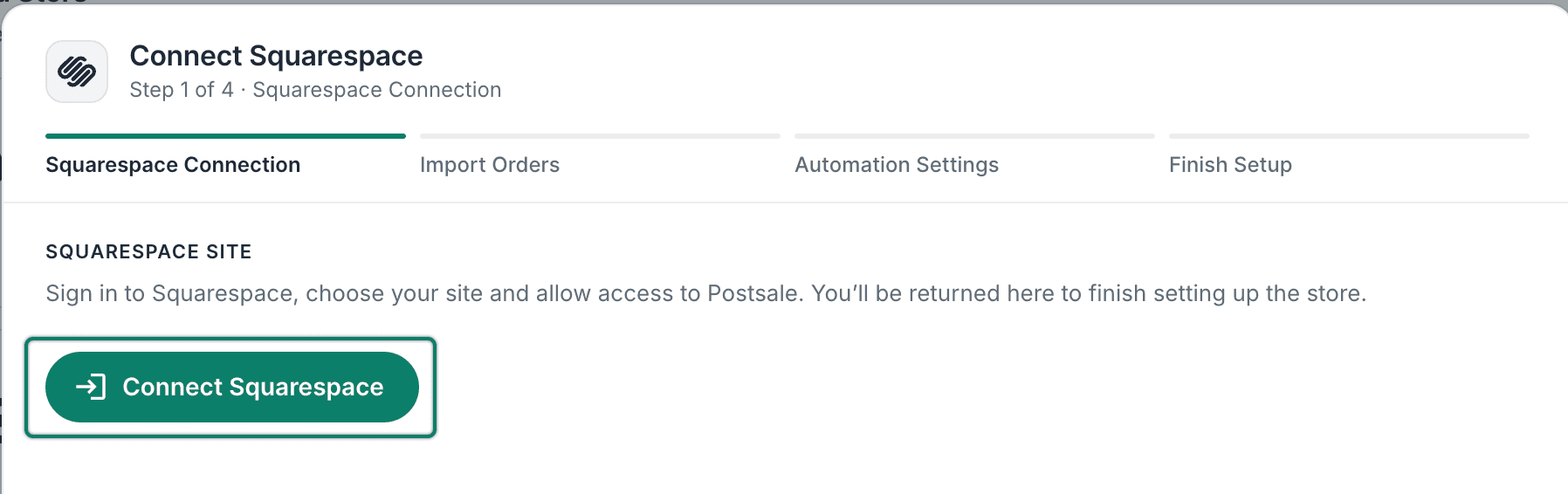
The Connect Squarespace set up screen opens, and you are prompted to connect to Squarespace.
Select Connect Squarespace.
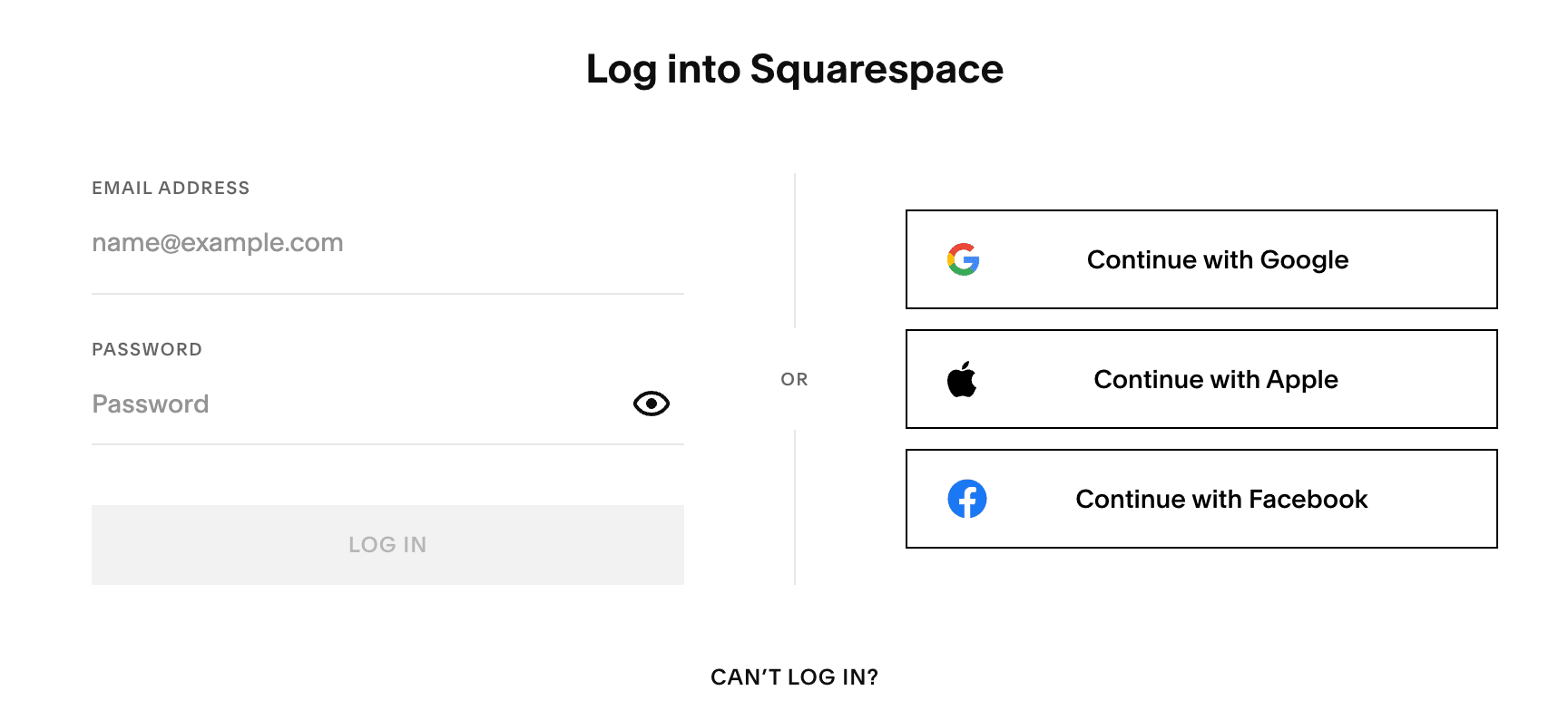
You'll be redirected to the Squarespace login page to log in and grant access.
Once you connect to Squarespace, you'll return to the Import Orders screen in Postsale to continue setup.
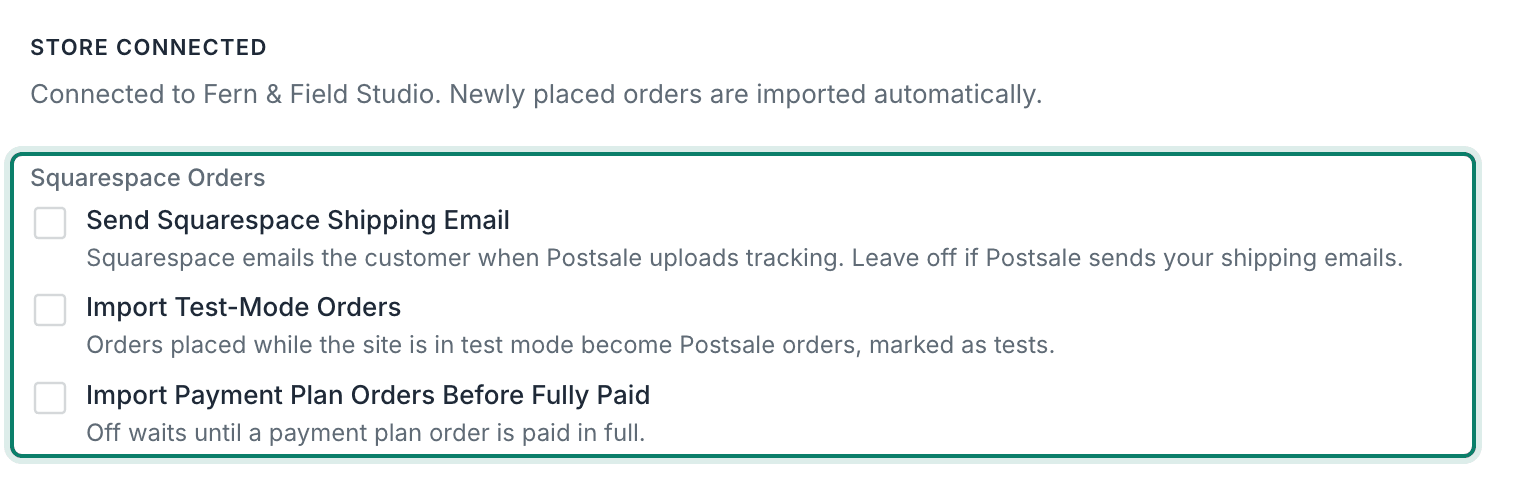
(Optional) Review and enable any of the three Squarespace Orders options that apply to your store. The settings are:
- Send Squarespace Shipping Email: When enabled, Squarespace emails the customer when Postsale uploads tracking information. Leave this option disabled if Postsale is configured to email shipment notifications to the customer. This setting is disabled by default.
- Import Test-Mode Orders: When enabled, orders placed while your Squarespace site is in test mode are imported into Postsale. Postsale adds a note to the order indicating 'TEST ORDER'. This setting is disabled by default.
- Import Payment Plan Orders Before Fully Paid: When enabled, payment plan orders are imported into Postsale before they are paid in full. This setting is disabled by default, so only fully paid orders are imported.
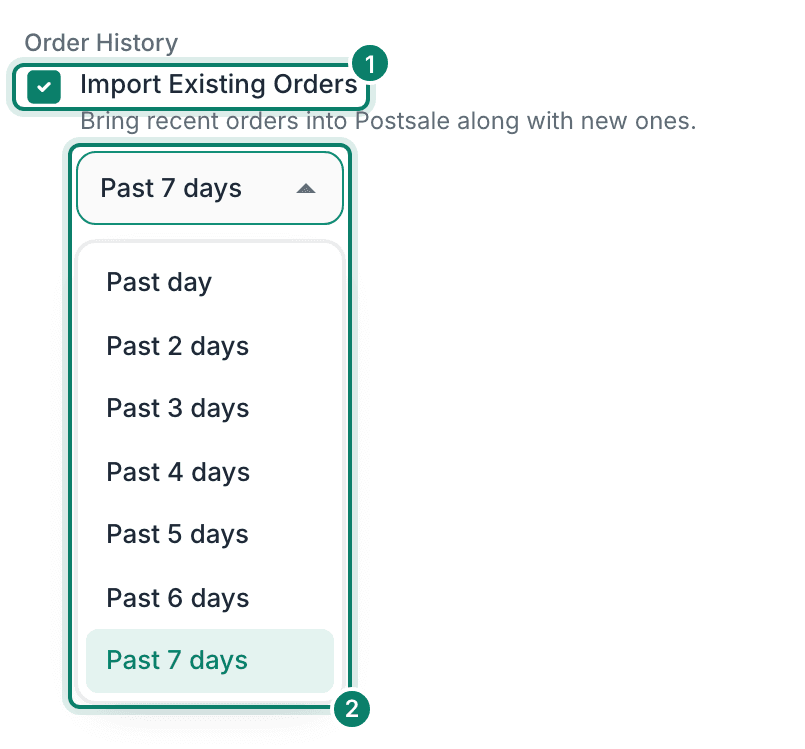
(Optional) Import recent orders into Postsale, in addition to any newly placed orders, by selecting the Import Existing Orders option and choosing how many days of order history to import. Then, click Next.
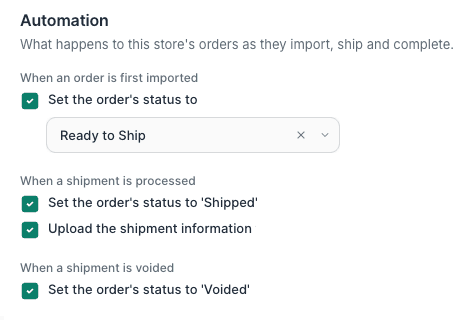
Confirm that you want Postsale to perform the following actions automatically. Then, click Next.
- When an order is first imported
- Set the order's status to [select the status from the drop-down menu]
- Enable this option to specify what the local status of the order should be set to when orders are imported for the first time. With this option disabled, the order's local status will be blank when imported.
- When a shipment is processed
- Set the order's status to 'Shipped'
- Upload the shipment information
- When a shipment is voided
- Set the order's status to 'Voided'
- Set the order's status to [select the status from the drop-down menu]
- When an order is first imported
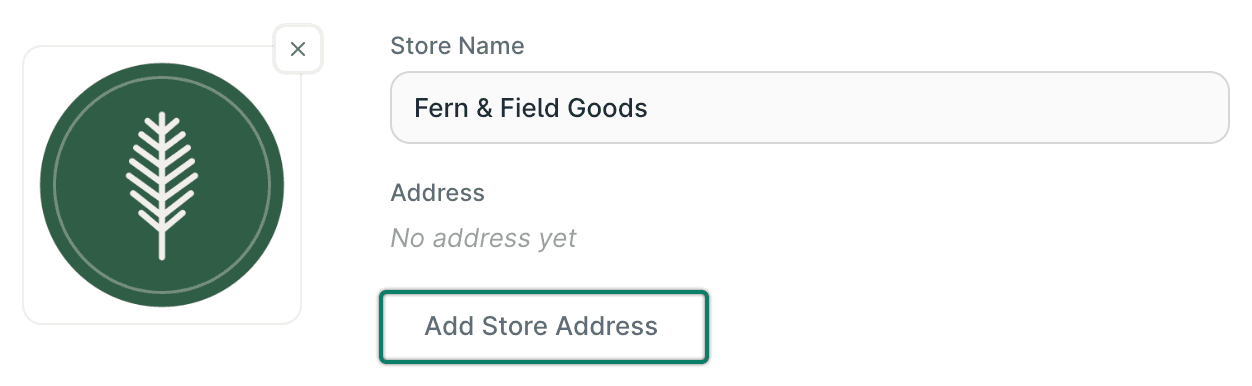
Enter the store name in the Store Name field.
- The store name you enter will be considered the Order Source in Postsale.
- The store name will be displayed in the Source column on the Orders Grid.
- The store name can be used as the Order Source when creating Filters to find orders from this store.

(Optional) Select the Logo tile. Then select an image file (JPEG or PNG) from your computer.
- Postsale supports JPEG and PNG files with a recommended size of 3 MB or less.
- Larger image files will be reduced to a maximum file size of 3 MB upon upload.
- The logo will automatically display in Postsale templates that include a logo, such as the Invoice with Logo template.
- Learn how to edit an image in Postsale.
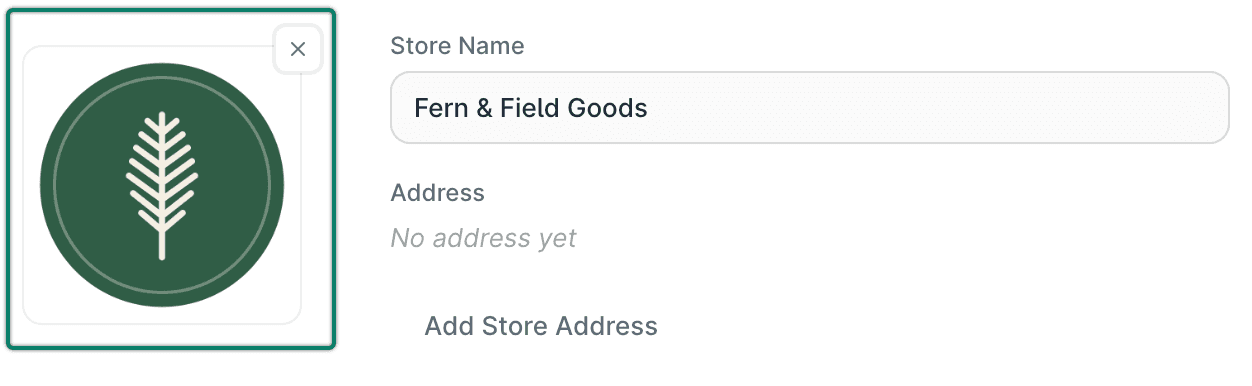
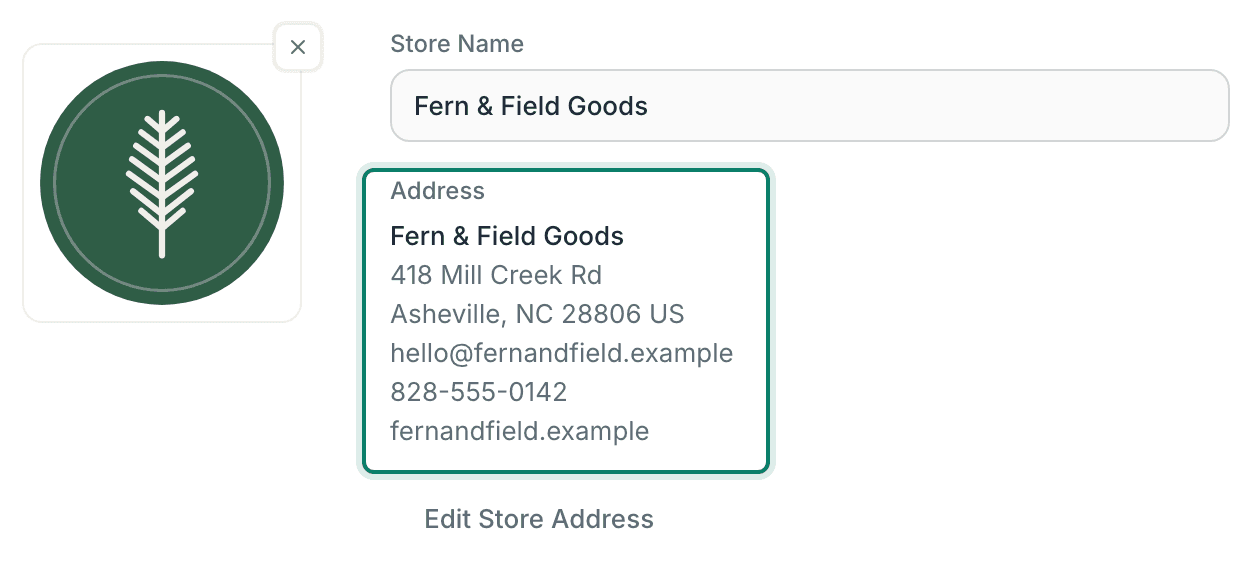
(Optional) Select Add Store Address to add a unique Ship From address for this store. Learn how to configure your Default Shipment settings so that the Store Address is automatically selected as the Ship From address for your shipments.
Once entered, the address is displayed.
Click Finish.
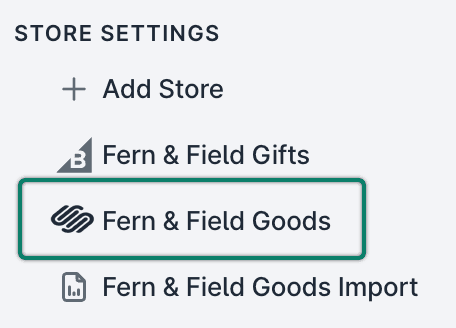
Your Squarespace store is added and appears in the store list.
Good To Know
Squarespace Orders in Postsale
- Orders with a Paid status in Squarespace are imported into Postsale.
- Orders with failed payments or pending payments are not imported.
- Orders with no physical products, such as digital products, services, or gift cards, are not imported into Postsale
- The following Squarespace order information is added as Tags associated with orders in Postsale:
- Squarespace order number
- Squarespace fulfillment status
- Squarespace Payment status
Still have a question? Ask a person.
Write to support@postsale.com or send us a message. We reply the same business day, Monday to Friday, 8 AM to 5 PM Central.