Shipment & Label Audit Logs
Gain visibility into changes made to your shipments and labels
In fast-moving shipping environments, clarity and accountability are key. Postsale’s audit logs give your team visibility into changes made to your shipments and labels. Whether it’s a switch in carrier or service, a weight adjustment, updated dimensions, or a label being created or voided, Postsale's audit logs provide a clear record of the changes, so you can easily resolve discrepancies and maintain a reliable shipping workflow.
This article will walk you through accessing the shipment and label audit logs and how to read them. Learn more about order audit records.
Access The Audit Logs
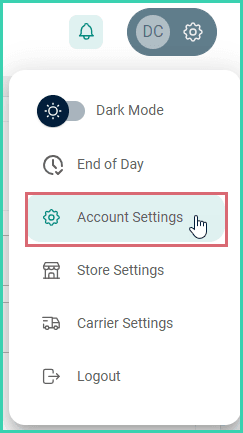
Go to Settings.

Select Account Settings.
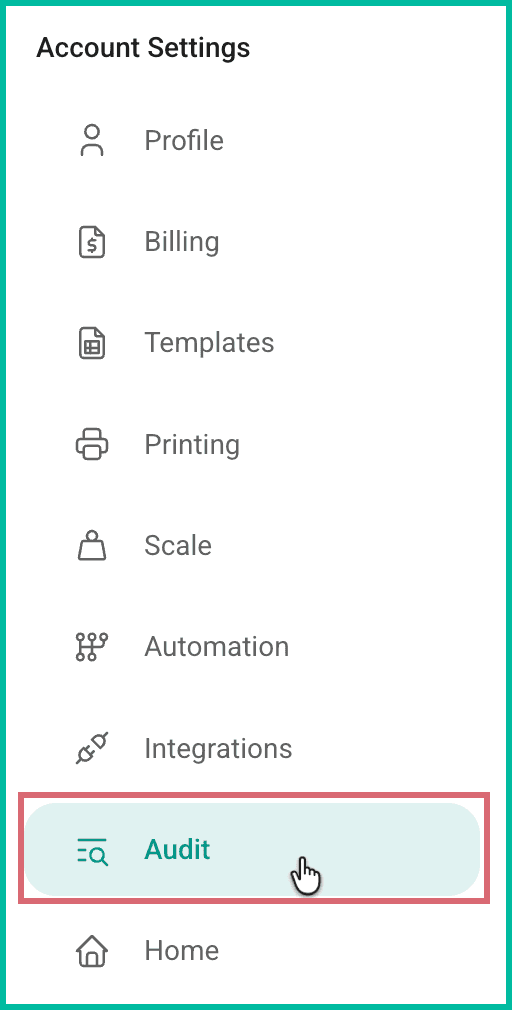
Select Audit from the list of available options.
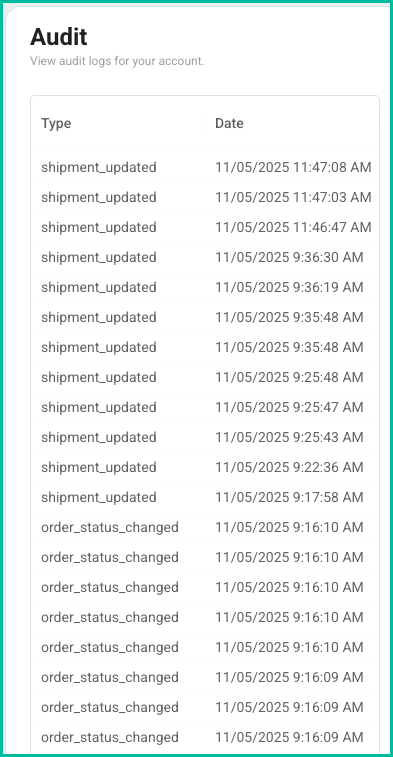
The available audit records are listed for you.
About the Audit Logs
Here are a few helpful details about the list of available audit logs:
- Shipment, label, and order related logs are available in the list of available logs.
- Shipment logs are listed in the Type column, beginning with shipment_, such as shipment_updated.
- Label logs are listed in the Type column, beginning with label_, such as label_created.
- Order logs are listed in the Type column, beginning with order_, such as order_status_changed.
- Logs are listed in reverse chronological order by Date and Time.
- The previous 30 days of logs are available. Log records older than 30 days are removed from the Audit page and purged from our system.
Read the Shipment & Label Logs
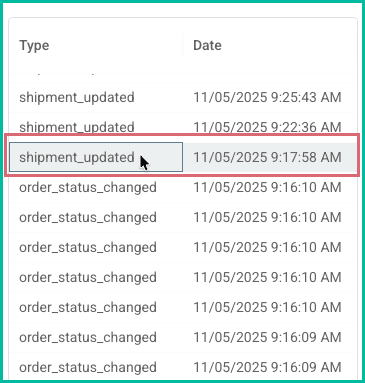
Locate the shipment or label log you wish to view, then click it to select it.
Locating Shipment Logs
Do you know the date the shipment or label in question was updated? Scroll down to the audit logs that list that date in the Date column. This may help to quickly focus on a specific record.
When you select a log, the Audit Log Details are displayed.
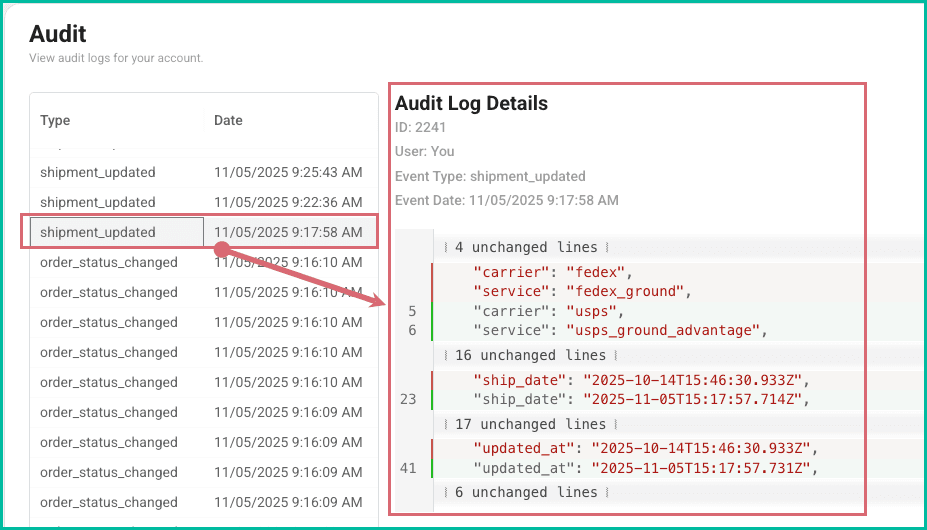
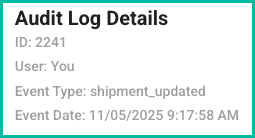
At the top of the Audit Log Details, you'll see the following information listed:
- The log ID.
- The User who made the change to the shipment.
- The Event Type. The type helps to identify what occurred. For example, shipment_deleted clearly identifies that the log is related to a shipment that was deleted, shipment_updated indicates that a change was made to the shipment, and so on.
- The Event Date. This is the date/time stamp indicating when the event occurred and the log was created.
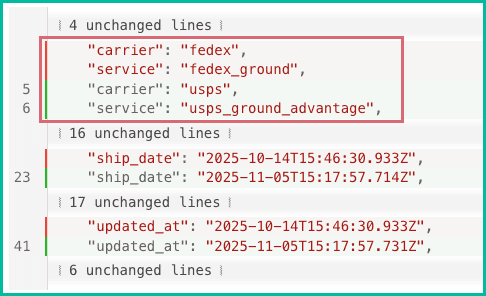
Below this information, you'll find the information about the specific change or update made to the shipment or label.
The great thing is that only the audit record lines related to the update or change are shown to you, making it easy to identify the exact details of the update.
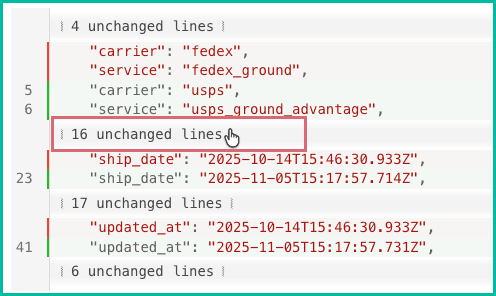
Take a look at the image below. In addition to the timestamps indicating when the changes occurred, we can easily see that the carrier and service (in red) were changed from fedex and fedex_ground to carrier and service (in green) usps and usps_ground_advantage.
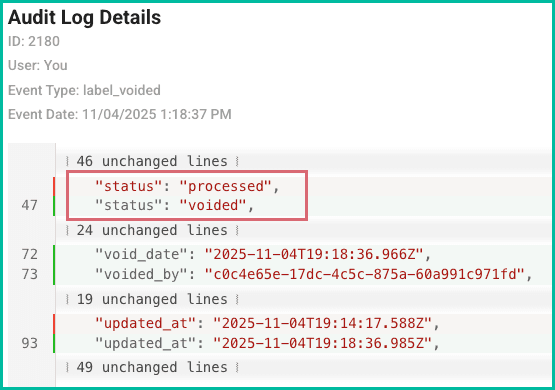
Here's another example showing that a label was voided. Notice that the status (red) indicates the label was ‘processed’ and then was later ‘voided’.
View More Log Information
Do you need to view more information within the log? Click on any of the lines indicating the number of unchanged lines to expand all of the details of that section.
For example, clicking on 16 unchanged lines would expand all of those lines so that they are visible.
On this page
Related