Track Shipments
Monitor the tracking status of your shipments | The Label Tracking Status dashboard
Tracking the progress of your shipments can go a long way toward ensuring high levels of customer satisfaction. By monitoring your shipments' progress, you can quickly handle any shipping exceptions or notify your customers when their package has shipped or has been delivered.
In this article, we explore how to monitor the progress of your shipments using the Dashboard, with columns added to the Orders Grid, with reports, and in the Rate Selector in the Dock. We also link you to other help articles that guide you through using automation to send emails based upon a shipment's current tracking status.
Tracking Numbers & Tracking Statuses
Tracking numbers and current tracking statuses can be viewed in the Orders Grid and in the Dock, allowing you to view the tracking status history or copy the tracking number for any shipment. Learn how to add columns to the Orders Grid or Shipments Grid in the Dock.
View the Current Tracking Status & Tracking History
View the current tracking status and tracking status history from the Orders Grid and the Dock by clicking the magnifying glass icon.
From the Orders Grid
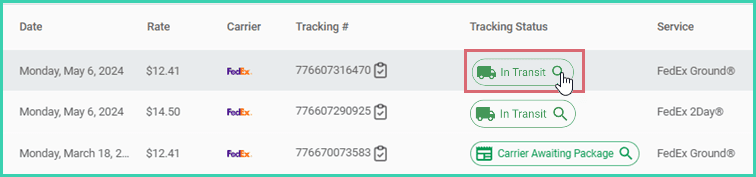
From the Dock

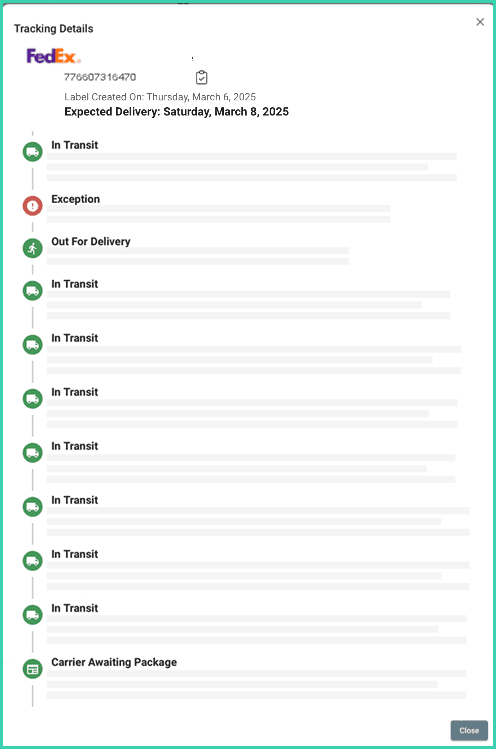
The Tracking Details are displayed. The following information is available:
- The tracking number
- The date the label was created
- The most recent delivery date provided to Postsale by the shipping carrier
- Tracking events provided to Postsale from the shipping carrier with the most recent event at the top of the list
Copy a Tracking Number
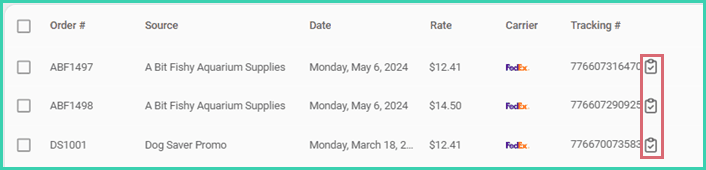
Copy a tracking number from the Tracking # column on the Orders Grid or from the Rate Selector in the Dock by clicking on the Clipboard icon next to the tracking number. This is useful when you need to paste the tracking number into another field or application, such as when tracking a package directly on the carrier website.
From the Orders Grid
From the Dock

The Dashboard: Label Tracking Status
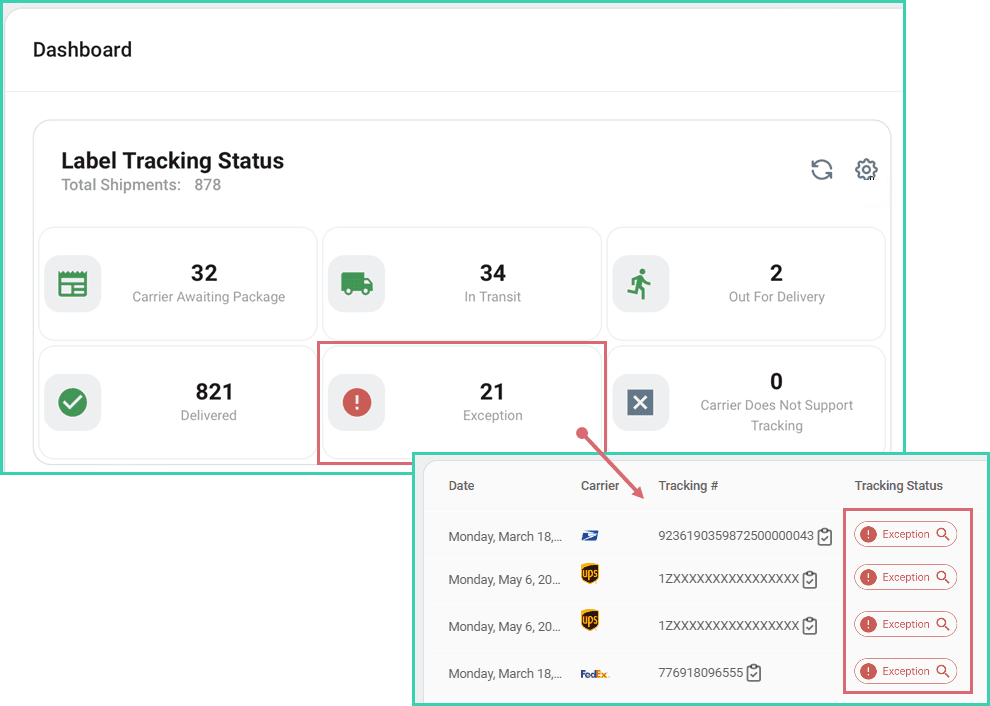
The Label Tracking Status widget on the Dashboard allows you to quickly view how many orders are in any given tracking status. You can then drill down further to view orders in a particular status.
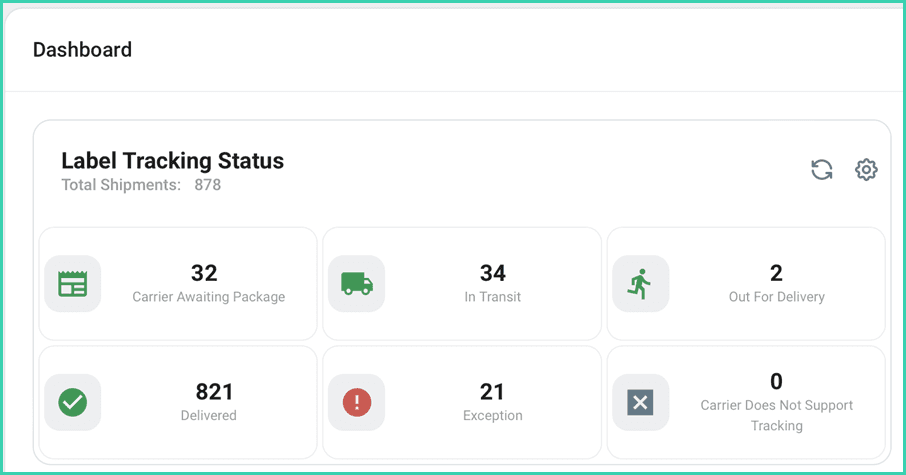
Click on any status within the widget to view the orders with shipments in that status.
For example: Clicking the Exception status would open the Orders Grid and display 21 orders with shipments in the Exception status. You could then view the tracking history for more information on the shipment exception of each shipment.
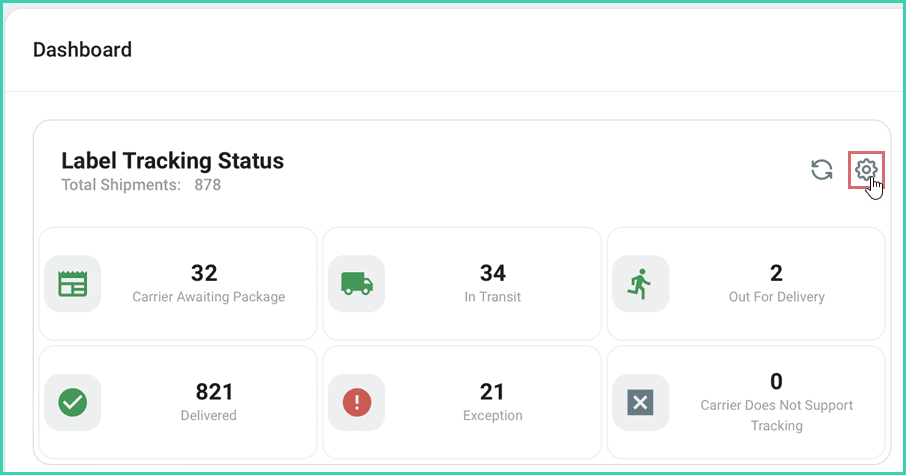
Click the Settings gear icon to open the setting dialog.
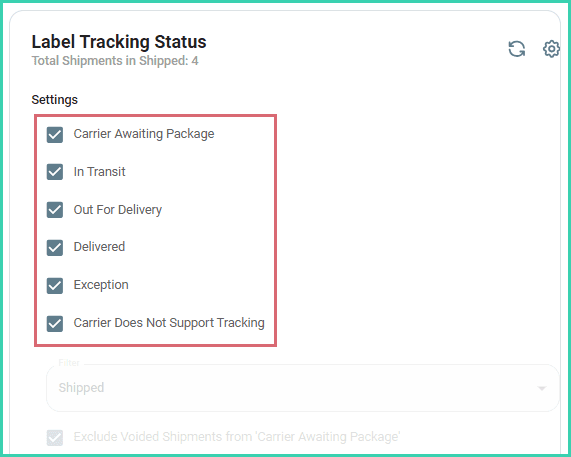
From here, you can:
- Control which tracking statuses are displayed in the widget
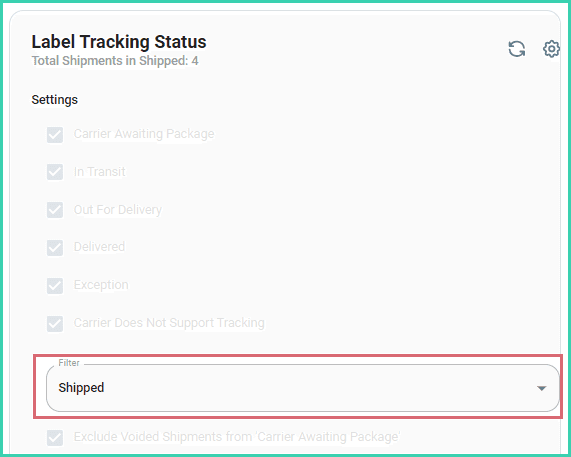
- Select a Filter from your list of filters in the Orders Menu. Only the orders that meet the conditions of the selected filter will be used to calculate the results of the Label Tracking Status widget.
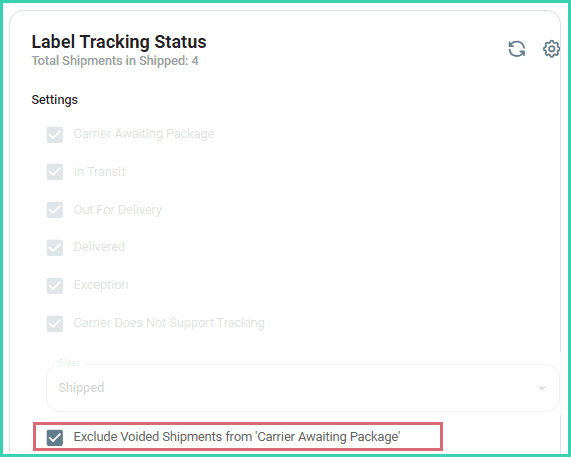
- Specify whether or not you wish to include voided shipments from being displayed as ‘Carrier Awaiting Package’.
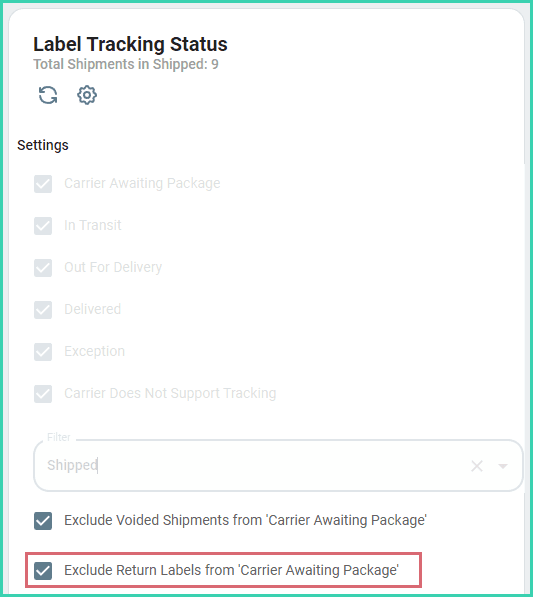
- Specify whether or not you wish to include return labels from being displayed as ‘Carrier Awaiting Package’.
Reports
There are two Postsale reports that may be useful when tracking your shipments:
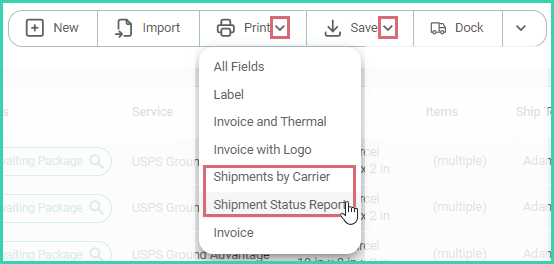
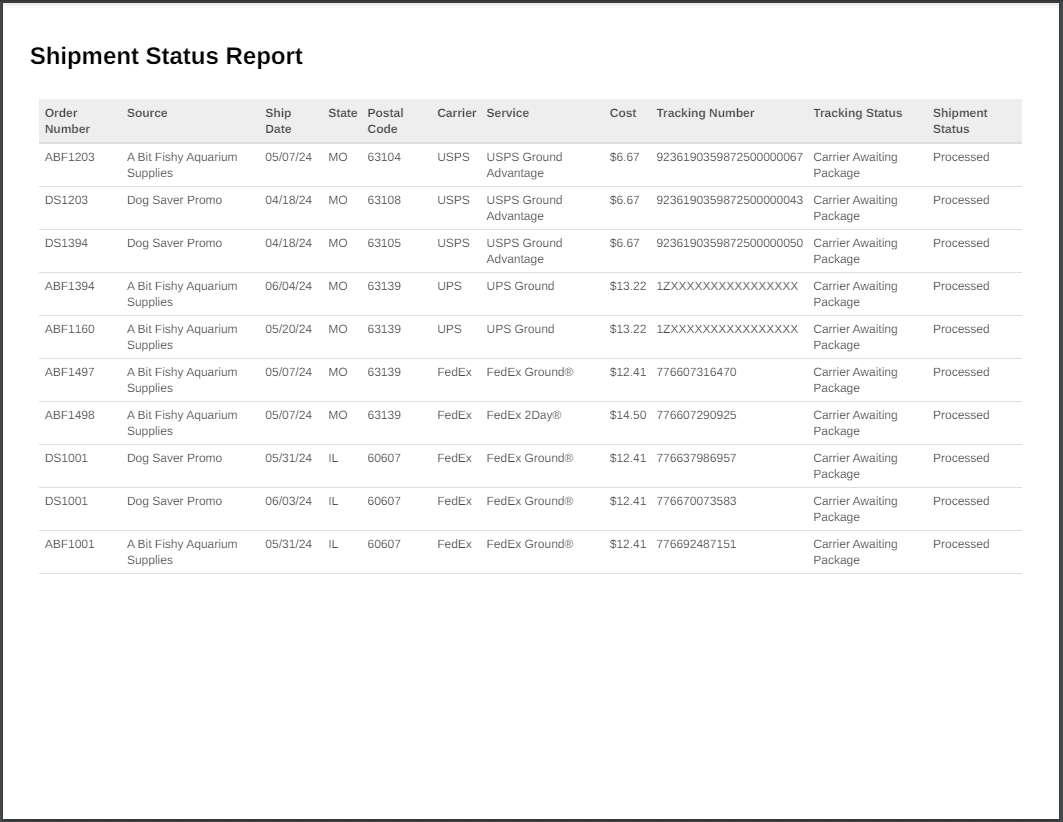
- Shipment Status Report
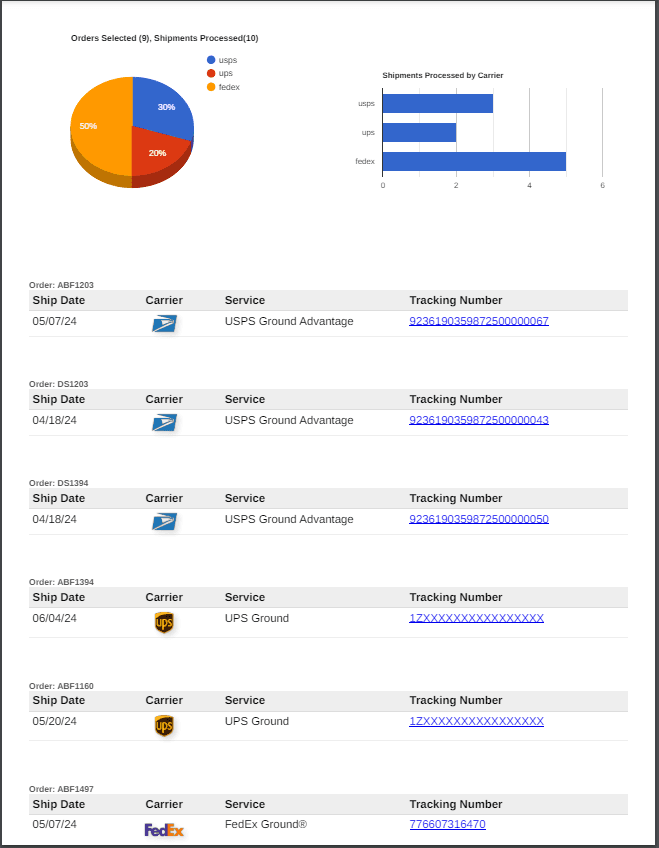
- Shipments by Carrier
You can print or save either report. Here's how:
Search for and select the orders that you wish to include in the report.
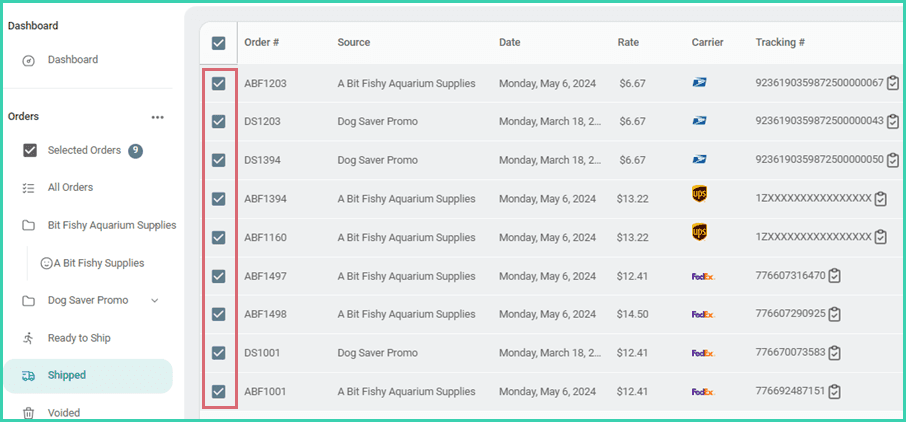
Select either Print or Save from the Order Actions Menu. Then, select the report you wish to save or print from the drop-down menu.
Follow the prompts for your web browser to save or print the report.
Report Examples
Here's an Idea!
Why not use Postsale's automation features to automatically send an email when an order's tracking status changes to a specific status? Maybe send an email to your customer to let them know their package is out for delivery. Or, send an email to your shipping department to let them know a shipping exception has occurred.
On this page
Related