Add Label References
Add additional information to your shipping labels with label references.
Add additional information to your shipping labels using the reference fields in Postsale. Reference fields can be used to add information such as:
- The order number
- Product SKUs
- A personalized message
This article will show you how to add information to the reference fields and which reference fields can be used for each shipping carrier.
Add Label References in the Dock
Locate the Reference Fields
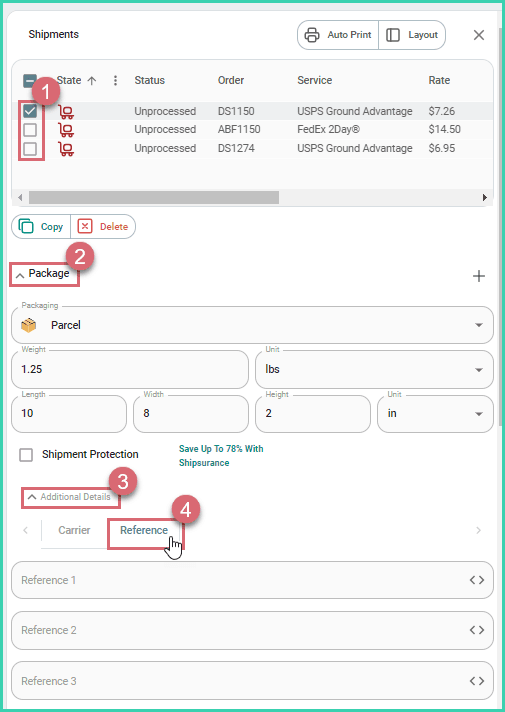
Label references are added to the reference fields in the Dock when configuring your shipment details prior to creating a shipping label. The reference fields can be found in the same place, regardless of the shipping carrier you are shipping with:
Verify that the shipment you wish to add the reference to is selected in the Dock.
Expand the Package section.
Expand Additional Details.
Select the Reference tab.
Add Reference Information
There are three ways to enter information into the reference fields:
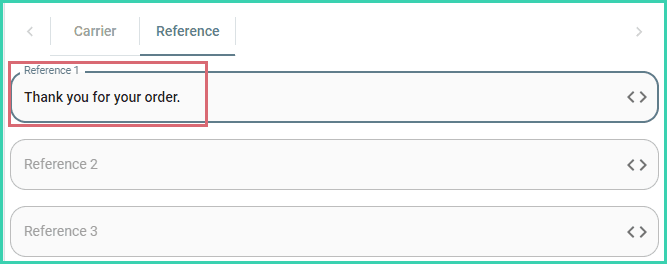
Manually
Type your message into one of the available reference fields for the carrier you are shipping with.
For example: You could type a thank you message to your customer.
Select from a List
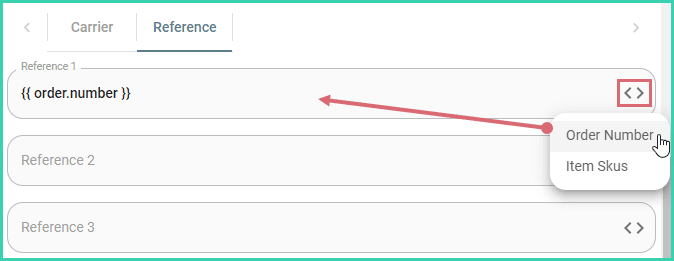
Select whether you wish to include the order number or the order's item SKU(s) by clicking the angle brackets < > and selecting from the list of options.
- Postsale populates the reference field with the correct code (to include the order number or SKUs) based upon your selection.
- If an order has multiple SKUs, all of the SKUs will be listed separated by commas.
A Combination of Manually and Selecting from a List
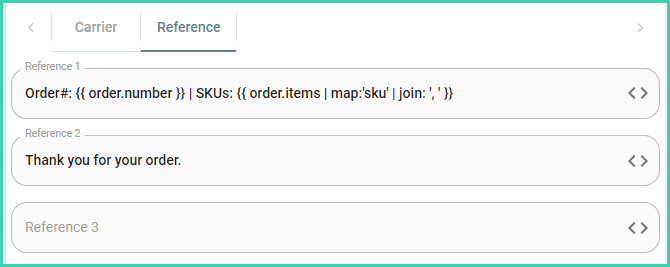
You could combine the two above options to create a custom reference.
For example: Enter the code found below into the reference field to display the order number followed by the SKUs, like this.
Order#: DS1023 | SKUs: 1234, 7890
Here is the code:
Order#: {{ order.number }} | SKUs: {{ order.items | map:'sku' | join: ', ' }}If the carrier supports multiple references, you could also include a personal message in another reference field.
Automatically Include References on Every Label
Let's look at how to set the shipping defaults so that a reference is included on all shipping labels.
This method is best when you would like the same reference to be printed on every shipping label without having to manually add it to each shipment.
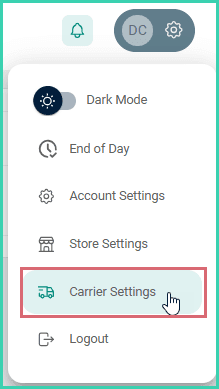
Go to Settings.

Select Carrier Settings.
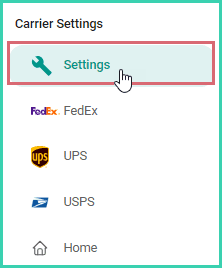
- Select Settings.
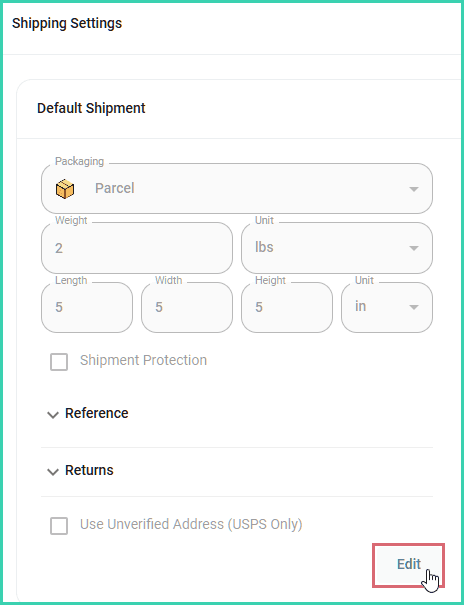
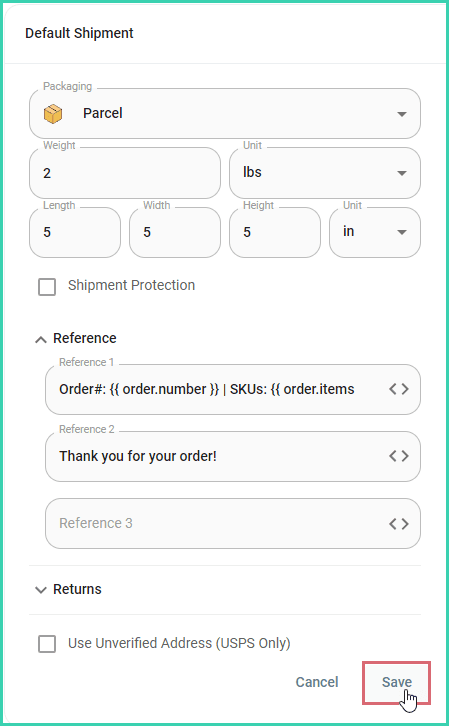
Click Edit in the Default Shipment section. Learn more about the available Default Shipment settings.
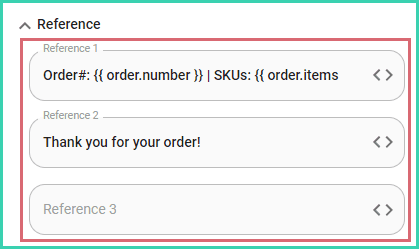
Expand the Reference section.
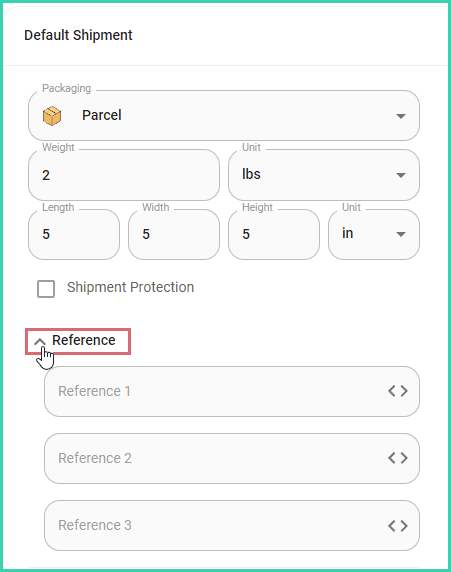
Enter the desired references into the Reference 1, Reference 2, and/or Reference 3 fields. See the Add Reference Information section above for more information.
Click Save.
Supported Reference Fields by Carrier
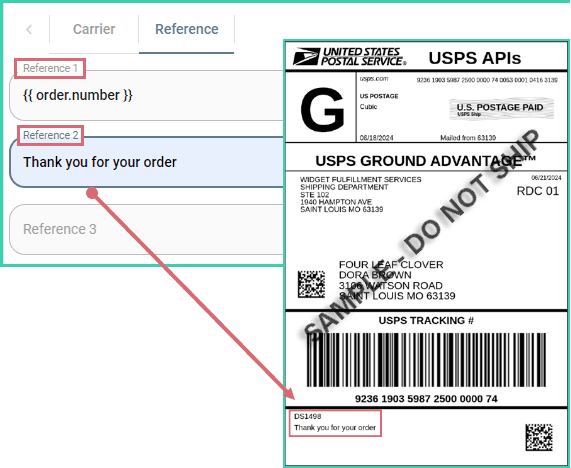
USPS labels support printing information entered into the Reference 1 and Reference 2 fields in Postsale.
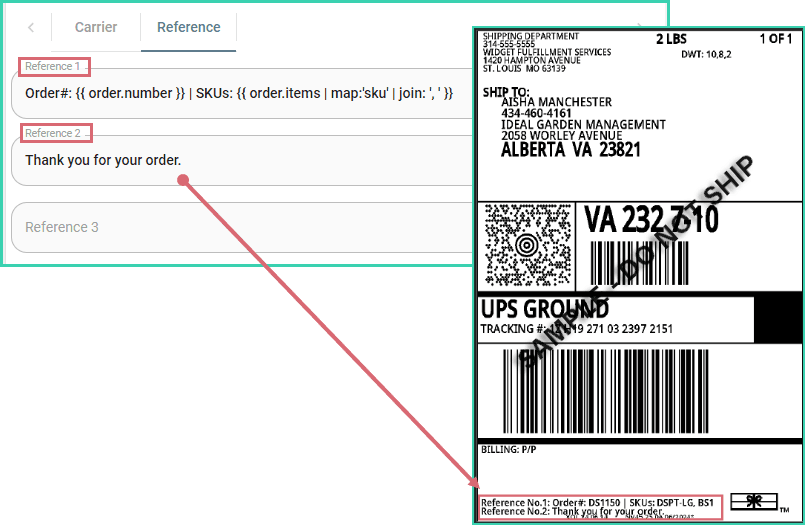
UPS labels support printing information entered into the Reference 1 and Reference 2 fields in Postsale.
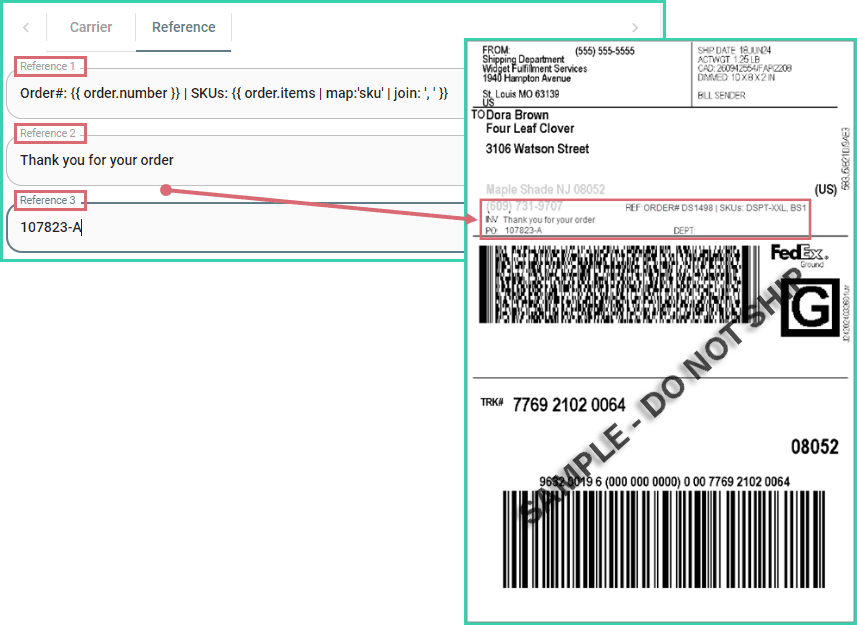
FedEx labels support printing information entered into the Reference 1, Reference 2, and Reference 3 fields in Postsale.
- Reference 1: Shows as the REF: on the printed FedEx label.
- Reference 2: Shows as the INV: on the printed FedEx label.
- Reference 3: Shows as the PO: on the printed FedEx label.
On this page
Related