Manually Enter Tracking for a Shipment
Learn how to use Enter Tracking in the Dock to record the tracking and shipment details of a label you bought outside Postsale.
Use Postsale's Enter Tracking option to manually enter shipment details, like the carrier, service, and tracking number, for labels you bought outside Postsale.
Before We Begin
- You need an order with a shipment that doesn't have a label yet. Enter Tracking works on one shipment at a time, so select only that shipment.
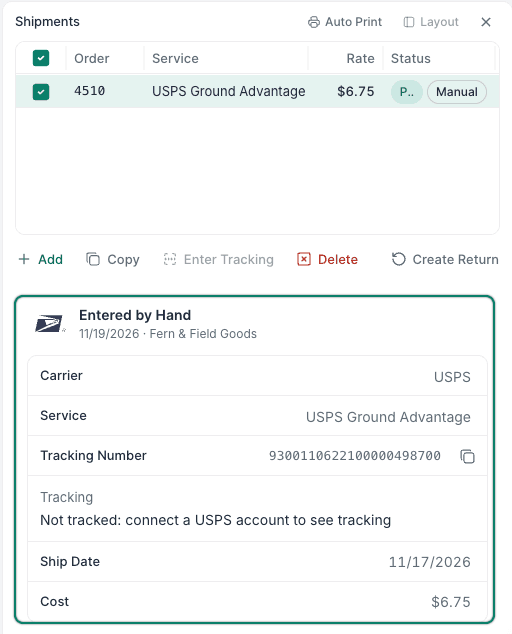
- Postsale shows tracking for a shipment entered this way only when an account for that carrier is connected to Postsale. If one isn't, or you chose Other Carrier, the Dock says the shipment isn't tracked.
- You need to be logged into Postsale as the account owner, as a Manager, or as a user assigned the following permissions:
- Edit Shipments
- Create Shipments
New to the Dock? Learn more in Introduction to the Dock.
Enter Tracking for a Shipment
Search for and select the order in the Orders Grid.
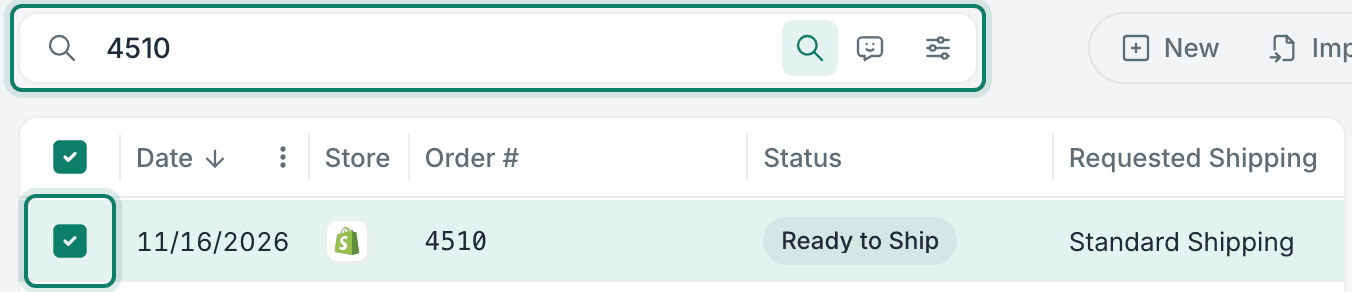
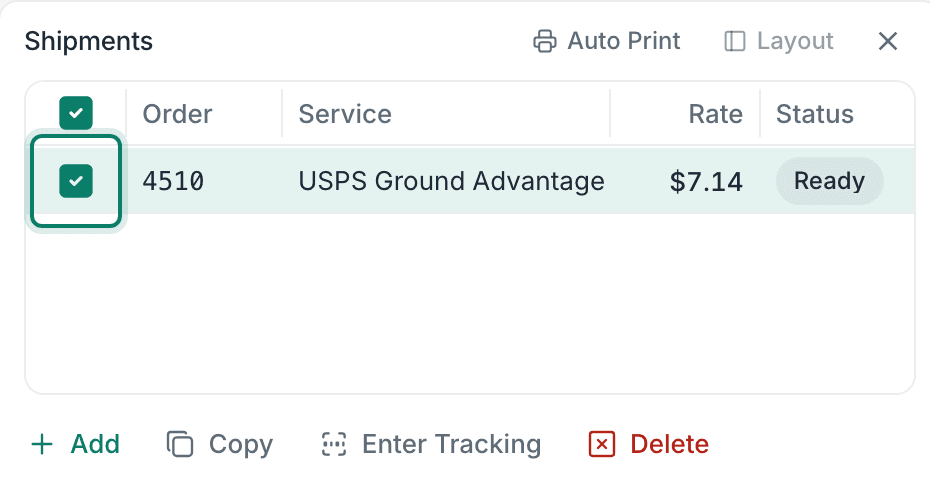
Verify that the shipment is selected in the Dock.
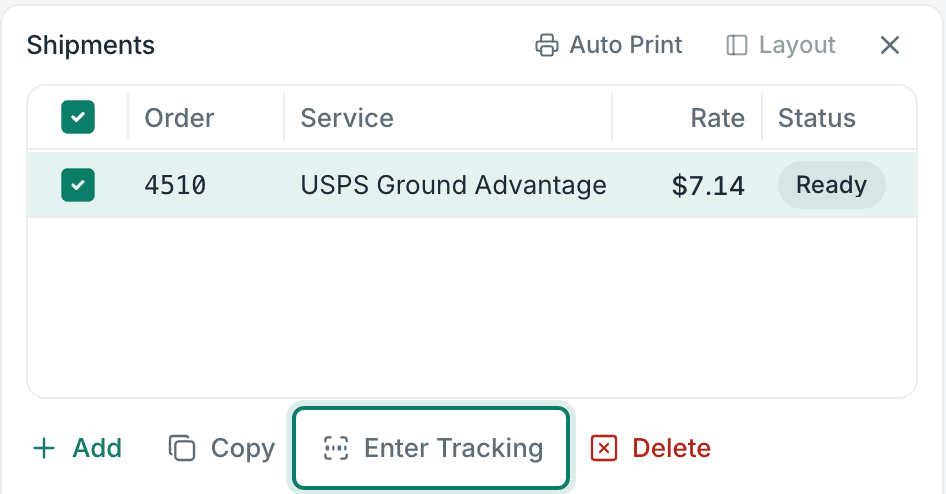
Select Enter Tracking below the list of shipments in the Dock.
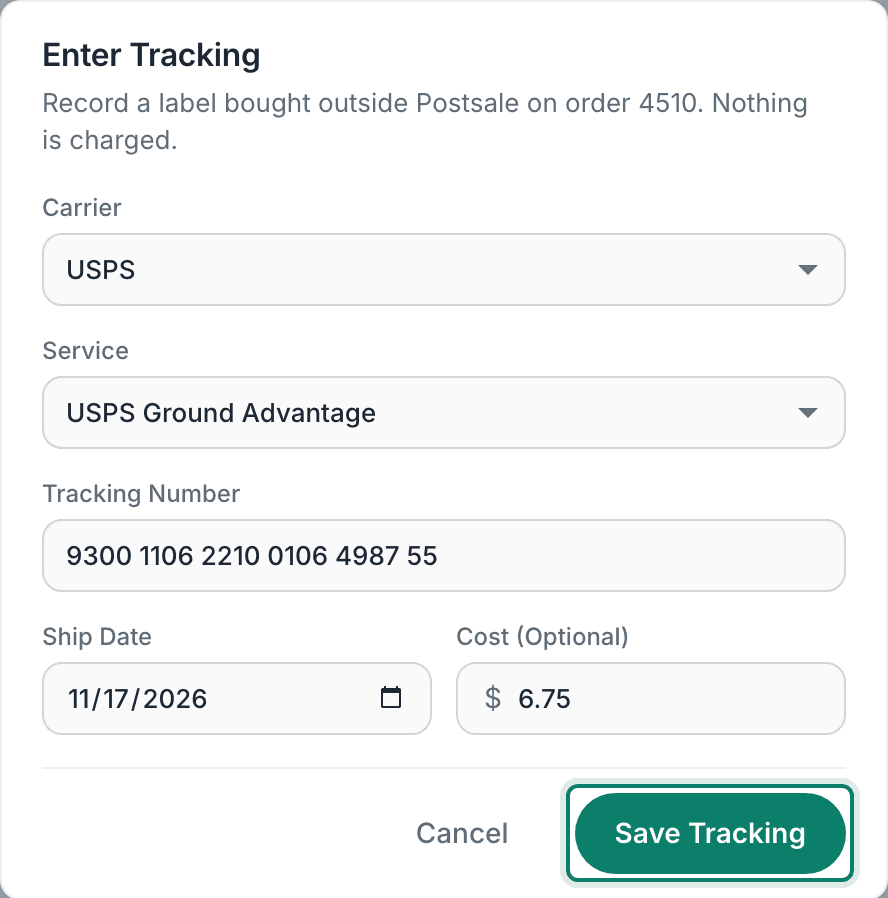
The Enter Tracking pop-up opens.
Fill in the shipment details. Carrier and Tracking Number are required, and so is Service for a carrier in the list.
- Carrier: Select the carrier from the drop-down. If it isn't listed, select Other Carrier, enter its name in Carrier Name, and enter the service in Service (Optional) if you know it.
- Service: Select the service from the drop-down. It lists the services for the carrier you selected.
- Tracking Number: Enter the tracking number.
- Ship Date: Select the date. It starts with today's date.
- Cost (Optional): Enter what you paid for the label, or leave it blank. Postsale doesn't charge you for it.
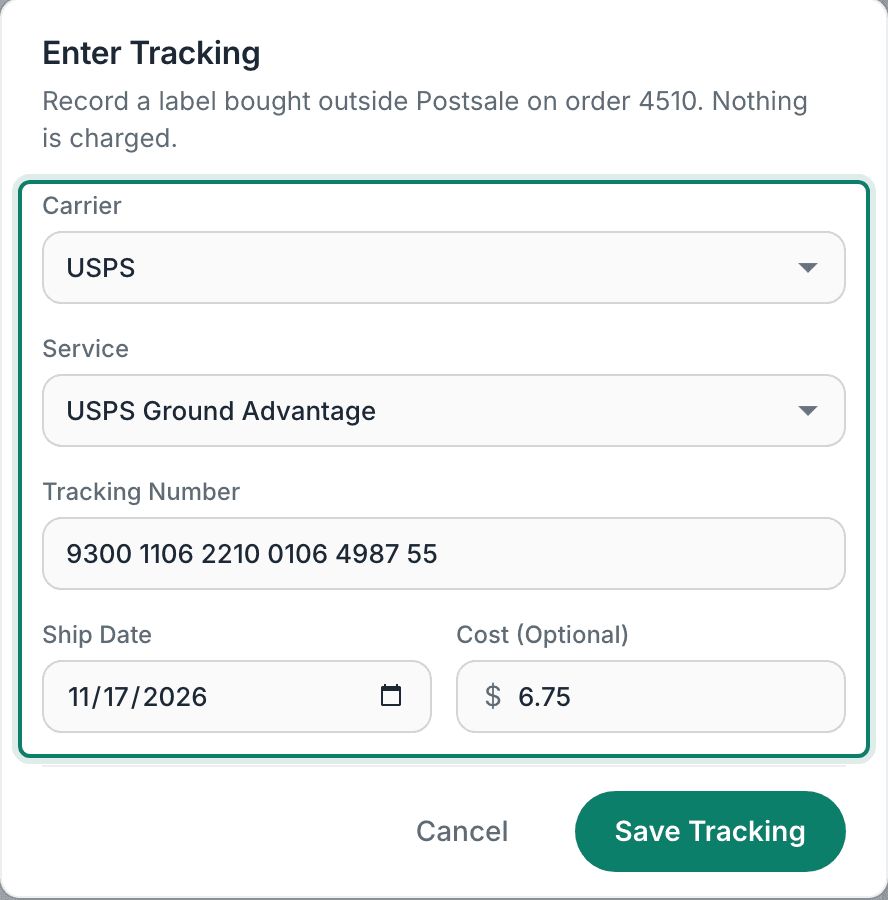
Select Save Tracking.
The shipment's details now show in the Dock, and it's marked Manual.
Still have a question? Ask a person.
Write to support@postsale.com or send us a message. We reply the same business day, Monday to Friday, 8 AM to 5 PM Central.